HELP ARTICLE
How to Start and Track Your World Cup 2026 Sticker Album in Onzi
A step-by-step guide to logging your first stickers in Onzi and reading your album progress screen.
4 min read · Updated June 7, 2026
Before you start: how Onzi keeps your album
Onzi is free, works fully offline, and never asks you to sign up or log in. The first time you open the app, it already loads the full World Cup 2026 album layout, with every national team and every number, ready for you to mark what you own. (Quick note: Onzi is a fan-made app, not connected to Panini or FIFA. It is just here to help you keep tabs on your collection.)
Everything stays on your phone. You do not need a connection to log stickers, and none of your data leaves the device. The flip side is that your collection is tied to this install on this device: for now, Onzi has no cloud backup and no automatic transfer to a new phone. So keep the app installed and avoid clearing its data, or you could lose what you have marked. You do not need any account to reinstall it.
Logging your first stickers
Getting going takes seconds. The easiest way is to let the app read the sticker with your camera: it picks up the team code and the number on its own, so you never type a thing.
Here is the flow:
- Open the scan camera and point it at a sticker; the app reads the team and number automatically.
- Tap once to add the sticker to your collection.
- Move on to the next one. You can log a whole stack back to back.
- Pulled a double? Mark the extra copies so they drop into your duplicates list.
- Tapped the wrong one, or peeling it out of your binder? Tap it again to remove it from your collection.
Reading the progress screen
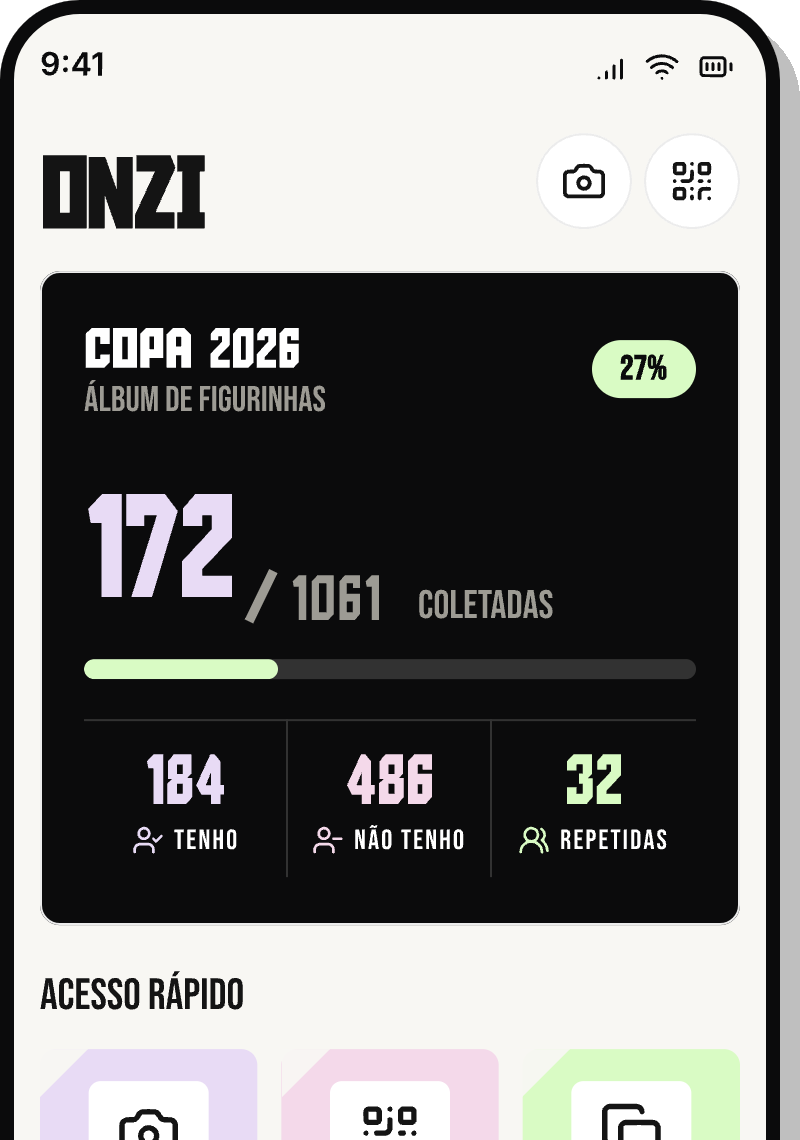
The progress screen is your album dashboard. At a glance, it shows how many stickers you have placed against the album total, so you always know how much is left.
This is usually where you keep an eye on:
- How many distinct stickers you already have versus the album total (in other words, how complete your collection is).
- A clear read on how many stickers you still need to finish the whole album.
- A breakdown by national team, so you can see which squads are done and which have gaps.
- How many duplicates you have stacked up, kept separate from the ones you are still missing.
Tracking the album team by team
Beyond the overall count, Onzi shows your progress for each national team. That makes it easy to spot where to focus: sometimes you are one sticker away from completing a squad, and a per-team view makes that jump out.
Open a team and you see its full list of numbers and exactly what you do and do not have yet. It is the clearest way to build your wanted list and to aim for the right stickers when you trade with friends.
Keeping your progress up to date
Your progress moves with your collection: every time you add or remove a sticker, the numbers update on the spot. There is no save button, the app holds onto everything for you.
Just opened a fresh pack? Fire up Onzi and log the stickers while they are still in your hand. It is the surest way to keep your count honest and watch the album creep toward 100%.